Image Resolution and Posting On Web

Joined
Jun 16, 2006
Messages
1,411
I see some really nice photos here and some are so clear and detailed. Yet when I post some of the pics I've taken, they don't look so good. I have an Apple computer and I use Photoshop CS2. My pics look pretty good (to me) on my computer but when I post them online they appear different.

What resolution do you shoot your pics at? What physical size to you crop them to, i.e, 5X7, 8X10, etc.? What resolution do you change them to when you post, i.e., 72ppi, 96ppi, etc.? Do you assign a different PS Color Setting? I work with my pics in Adobe RGB(1998). I heard to post on the web you should change the Color Setting to sRGB IEC61966-2.1 for them to show up better online. When I'm done with post processing I use the "Save For Web" setting to get the size as close to 100k (size limit for most online forums to post)as I can. I also try to get the jpeg quality number as high as I can without going over 100k in size.

I use a Canon SI3, digital camera that shoots in jpeg format (does not have Camera RAW). I shoot at highest resolution (less compression). I open my images at 180ppi and make my adjustments. I've been thinking of changing them to 300ppi and work on them then downsize to 72ppi before posting. On my Apple the screen resolution is 72ppi. A friend said his PC's screen resolution is 96ppi.

Any suggestions?
 
I open a file at the resolution I want to post (like 800x600 and 72dpi)
then drag in whatever image and scale it to fit the window.
then go to file: Save for web
I use a jpg setting of 60

Sounds to me like the image host is compressing your pics or something
 
when I post some of the pics I've taken, they don't look so good. I have an Apple computer and I use Photoshop CS2. My pics look pretty good (to me) on my computer but when I post them online they appear different.

First, when you say "different" - do you mean
(1) they look less defined/sharp?
- or
(2) are things like COLOR/TINT different?

I use a Canon SI3, digital camera that shoots in jpeg format (does not have Camera RAW). I shoot at highest resolution (less compression). I open my images at 180ppi and make my adjustments. I've been thinking of changing them to 300ppi and work on them then downsize to 72ppi before posting. On my Apple the screen resolution is 72ppi. A friend said his PC's screen resolution is 96ppi.

If it is (1) less defined/sharp - this might have some related bearing -
when displaying on computer monitors Macs display at 72ppi and PC's at 96ppi -
so it does NOT matter what resolution you shoot or save the picture at -
the computer display will always be the same.

What matters is the size in pixels - eg: 720x540,
or your camera's native max pixels = 2816 x 2112.

720x540 pixels would give an image of 10"x7.5" on a Mac (72ppi)
or about 720/96" x 540/96" = 7.5"x5.6" on a PC (96ppi) screen

A pic as-is straight from your camera would be ENORMOUS on a computer screen - 39"x29" on a Mac, or 29"x22" on a PC - far exceeding the screen size(s)

Most pics for web display are about 400x300 to about 800x600
anything above about 800x600 would cause side-scrolling on some monitors.

Although larger might seem "better" -
this is not always the case - either the displaying forum or the browser might resize the pic (which is not always done well - a very bad example is KnifeForums - which auto resizes pictures to 400pixels on the longer side and does not do it well)
or either the hosting service or the displaying forum might compress the pic again - resulting in poorer quality.

Your 100Kb seems OK
but a 100Kb file for a 2816x2112 pic would be compressed a LOT.
Afterall your original image was closer to 3Mb - taking it down to 100Kb without resizing/shrinking it means the image is further compressed by about 30X - that's huge

Sounds to me like the image host is compressing your pics or something

So if the pics look mushier without color shifts then this is the most likely cause - resolution probably has nothing to do with it -
make sure you RESIZE your image first to an acceptable size for the web (eg: 600x400) -
then do all your adjustments, then make sure you save it in sRGB - the Web standard
JPEG quality of about 5 (50%) on PhotoShop (Elements) would be good, enough for the web and more considerate for other users with slower access - that probably would give a file size of about 40-70Kb without too much compression.

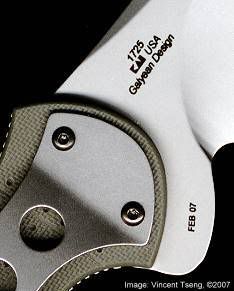
This image -
JunkYardDog2Mk.jpg

shows it's not size or resolution that makes the difference -
as it is merely 234x291 pixels and all of 11.6Kb -
on a PC it's only 2.4"x3" or on your Mac about 3.25"x 4" -
big enough to see lots of detail - yet not so big to be "obnoxious" ;)

Or if it is (2) color shift - then it is most likely the use of AdobeRGB and not converting to sRGB correctly.

This Sticky: Image Editing Tutorial might be useful......

Hope some of this helps.

--
Vincent
http://picasaweb.com/UnknownVincent
http://UnknownVincent.Shutterfly.com
http://UnknownVT.Shutterfly.com
http://clik.to/UnknownVincent
 
Last edited:
When you reduce the size of an image you tend to lose a bit of sharpness and contrast.
This is something else that can contribute to "mushiness" and may not be terribly obvious if you don't compare the full size image to the resized image directly.

Generally after I reduce the size of an image for the web, I will use smart sharpen (CS3) or unsharp mask (CS2), and possibly tweak the contrast or levels (depending upon the particular image) to bring it back to what it looked like at full size.

In the Save For Web window you should also have a button to preview the web optimized image in your preferred browser. This should give you a good idea of how it should look when posted.

The jpeg setting of 60 is an excellent all around setting. Depending on the image content though, you can get a way with much lower settings. If there are very large areas of solid color with little gradation, you can typically get away with a very low setting. Very detailed images may need something higher than 60. If you have the time definitely play with the quality setting and watch how the preview looks.

Also, in Photoshop, if you go to the View menu, under Proof Setup, you can switch back and forth between Windows and Mac. This can help give you a better idea of what the image will look like to a Windows user.
 
My pics look pretty good (to me) on my computer but when I post them online they appear different.
Huh? OK, first to get good advice, you have to be specific.

Fortunately you gave out some hints, and the others have pointed out some good advice. And perpetuated one myth.....

72dpi vs 96dpi screen pitch. No effect on images at all. (If this effects anything, it is only on typeface, so I have read.) There is no change in resolution on a screen. Don't worry about this.

Measurement for the web is strictly in pixel sizes, so lose the printing DPI references and you will be much less confused. There are only two things you need to understand about the web, and you are close: Pixel dimensions, and compression. kneedeep's suggestion of 'saving for web' at 60% is my standard also. Good tip.

Vincent's post is chock filled with solid advice. My guess is that you are working and saving the images in a different color profile than sRGB. this WILL make your images look color different on a browser, as it is set to look good only on your home PC in Photoshop. A browser will disregard the embedded profile or apply sRGB instead. (BTW, Safari is the only browser that reads and applies the installed color profile, so I have learned.)

Although there are monitors that may have only a screen resolution of 800x600, they are FAR outnumbered by the modern world with monitors upwards of 1024x768. I think even that is a minority with the exception of smaller laptops or 17" screens. I would not be limited to sizes under 600pixels wide.

Coop
 
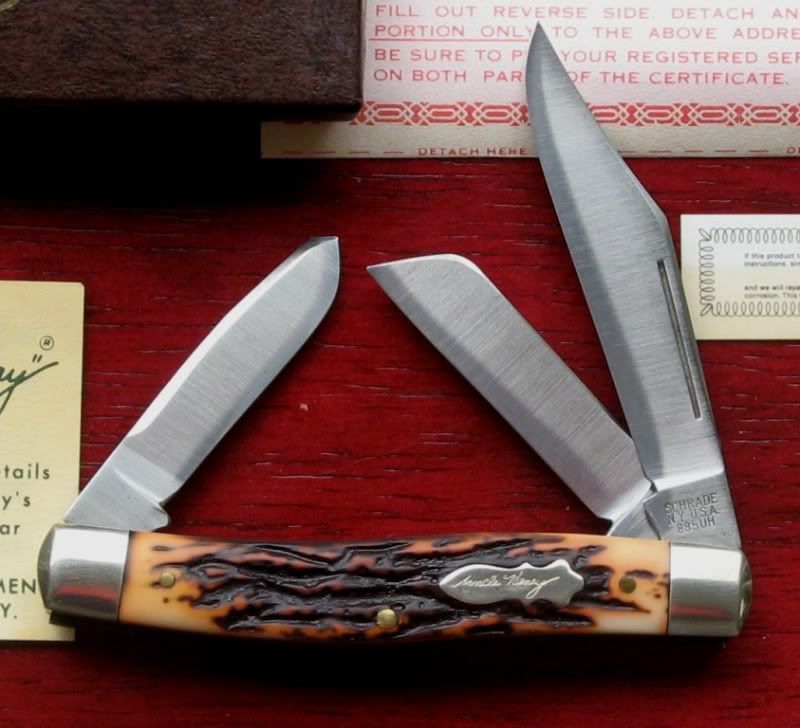
What works for me, an easy to use application called Microsoft Office Picture Manager. Not near the features of PhotoShop, but if you have it, it is great for adjusting large size JPG files, cropping, resizing, adjusting brightness. My camera is a Canon PowerShot A710 (not too expensive). Takes great pictures. I shoot at highest res as well (great tip), then crop out what I don't need, then save at a size that is about 100K - 200K. Great for close ups. I don't have a lamp or light box yet, so I take knife shots in the morning or on medium bright cloudy days for my best results. I would say my gear and results are like a Chevy, not a Caddie, but for posting in the forums or Ebay it is quick and works well for me.

885UH_NY_knife.jpg
 
You guys understand this web and digital image file size more than me for sure. I just use my Digital Image Pro 10 on images taken by a Nikon CP 995 3.4 Megapixel camera and then combine a bunch of images working in DIP 10 .png+ format and then save again as a .jpg file. After that, I resize to 800 x 600 (when I remember) and that is the image I upload to Fototime. Fototime allows me to use 640 x 480 like this one which is 82 KB

standard.jpg


or I can go to the original file size of 800 x 600 152 KB

like this

orig.jpg


seems to work by dumb luck I guess
 
72dpi vs 96dpi screen pitch. No effect on images at all. (If this effects anything, it is only on typeface, so I have read.) There is no change in resolution on a screen. Don't worry about this.

Measurement for the web is strictly in pixel sizes, so lose the printing DPI references and you will be much less confused. There are only two things you need to understand about the web, and you are close: Pixel dimensions, and compression. kneedeep's suggestion of 'saving for web' at 60% is my standard also. Good tip.

This is a great point, since web images in a browser will display 1:1 at what ever the screen pitch of the display is - whatever the dimensions in pixels you size the image to (800 x 600, 1024 x 768, etc.) are the pixels you are going to take up on the screen. Newer high resolution displays are running 100 - 120 ppi and we'll be seeing more soon. This all just means that more pixels are fitting into smaller screens, so go for bigger images.

(BTW, Safari is the only browser that reads and applies the installed color profile, so I have learned.)
Coop

Safari's my favorite browser, but Firefox 3 was just released and it also now supports color managed web browsing (though not by default). More info at Rob Galbraith's web site.

Might be worth checking out.
 
Last edited:
I did a quick resize of a shot without and with sharpening to show what I meant about loss of sharpness when shrinking an image.
These were resized down to 800 x 596, from 3836 x 2856.

No sharpening.
TiSG2JYDIInosharp.jpg


Smart sharpen 85% 0.5 radius.
TiSG2JYDIIsharp.jpg


Jpeg quality on both was set to 60. What is interesting about the compression, is the fact that in this particular instance, the softer image handled the setting a little better (which jibes with what I mentioned earlier). Compression artifacts are a bit more noticeable on the clips of the sharpened image. This is a case where I might have bumped the quality setting up a bit to see if the artifacts went away. If they didn't I might have considered doing a bit less sharpening.
 
Murray - You got it down. Shoot at high res to get the best detail, then resize it to 800 x 600 (pixels) to make it a manageable size. At 800 x 600 or 640 x 480 you still have the great detail, but just can't enlarge it. With a 3.4 Megapixel camera, your photos still look good.

My 7.1 Megapixel camera shoots 3072 x 2304 jpg files by default and then my program can auto resize to 1024 x 768, 800 x 600, 640 x 480, or 448 x 336. That's about as low as I go. Sometimes, for web posting, ulltra high megapixel is overkill.

I send finished pics to photobucket up to 3 or 4 at a time attached to emails that upload to my album. Then copy and paste IMG links into the forum post. I can take a photo, modify it, and get it into a post in about 30 seconds.

shroom.jpg

640 x 480 mushroom

To streamline it the process, I have a SD/MMC card reader always plugged into a USB port on my monitor. I take the SD card out of the camera and plug it into the reader. Then I don't run down the camera battery transferring pictures. The card opens up in Windows Explorer just like a memory stick (which it is).
 
Last edited:
This is a very informative thread with many knowlegable folks contributing. My own formula may or may not be of interest or relevant, but I'll post it anyway in the hope that there may be something useful in it.

For the original digital capture I shoot in RAW file mode, Adobe RGB color space, no added sharpening, contrast or color enhancement in-camera. My camera's full-frame 16 million pixel sensor generates a 4992 pixels wide X 3328 pixels tall file (20.8 X13.9 in.) 16.73 mb file. I convert the RAW file (using either Adobe Camera RAW or Adobe Lightroom) to a 300 pixel per inch, Adobe RGB, 16 bit TIFF file, then open the image in Photoshop CS3.

In Photoshop I most often use the marquee tool set to 8.5X11 inch fixed aspect and crop to taste (portrait or landscape mode, depending). The marquee tool crops without re-sampling (important for producing a sharp final image). The regular crop tool works if you remember to set the ppi before using. Should you forget, your image gets resampled without your knowlege and valuable data is lost.

Next steps are things like noise reduction, setting black/white levels, adjusting color and contrast curves, removing dust and fixing blemishes. Then the file is ready for saving without any compression. This is my original archive file and the file from which I print and also the file I send out for publication.

To produce web images I duplicate the original file, convert the color space to sRGB, re-size the image to 100 ppi and somewhere between 500 to 700 pixels tall and 700 to 900 pixels wide, using the 'bicubic sharper' option which compensates for softening with down-sizing. After further adjustments to taste I frame and label the image, saving it as an 8 bit JPG file in the 200-300 kb size range.

Admittedly, my processing is over-kill for what most folks want to do but it is pretty standard for professional photographers or an advanced amateur hobbyist like me.

After uploading to my FotoTime image hosting site, I can embed the image in a forum post. FotoTime does not further compress my images unless I ask it too. If I'm concerned that my image may be too large in dimension or amount of data I use a little trick that Coop taught me that will display my image as a thumbnail size that can be clicked to open to full size. This saves forum bandwidth and gives folks a peek at the image so they can decide if they want to fully open it or not.

These days however, I assume the majority of folks have hi-speed internet access and 17 in. monitors or larger so my images aren't a problem. Folks that are still using 14 in. monitors and dial-up access have my sympathy but like other photographers, I'm not willing to sacrifice the quality of my images more than is absolutely necessary.

My method is not better or worse than all of the others described in this thread. I use it because it gives me the step by step control I need for my purposes. I evolved this post-processing work flow pattern through extensive reading of the relevant software owner's manuals and aftermarket post-processing books, as well as photography magazines and relevant threads in photography forums. Below is an example of the results I've come to expect. For many more examples follow the LooksXpensive link in my signature line at the bottom. Happy shooting!

orig.jpg
 
HTMD - Great info. That is not overkill, just utilizing the equipment you have, and knowing what to do. I learn a lot like this. Thanks.
 
Thanks all.

I think I have most of the techniques down. I think the problem I'm seeing is the Adobe(RGB) vs sRGB Color Space. I need to duplicate the pics and save them as sRGB before posting online.
 
pkdmslf - I'm sure that will make a positive difference. Adobe RGB is best for print but lacks vibrance and color saturation when posted on-line.

thawk - Thanks, glad the info was useful.

Greg - no link but I'll try to describe what to do.

- first save this somewhere on your computer where you can quickly access it, like a desktop file. [ URL= http:/ /www.your picture link / orig.jpg ] [ IMG] http:/ /ww w.your picture link/thumbnail.jpg [ /IMG] [/ URL]
- after saving it, edit by eliminating all the spaces I had to insert to get it to show up in this post in its alpha-neumeric form and re-save it for future use.
- KEY POINT 1 - copy your image link, select the first http: through jpg portion and paste in your image link. Then - select the second http: through jpg portion and past in your image link.
- KEY POINT 2 - Notice that your image link will say either orig.jpg or standard.jpg - I always use the 'orig' size version of the image link. Now, the second time you pasted in your link, you need to delete 'orig' and replace with 'thumbnail' Then you can preview your post to make sure the image shows.

Example: Click to open... Depending on your browser settings it will open in a new window or the current window. If it opens in the current window, when you're finished viewing the image click the back arrow to return the the post.

 
You can preview your color profiles easily in CS2 to check the differences between them.

Open image in cs2 > view > proof setup > custom > then use the "device to simulate" pulldown list to select a new profile.

However, you should be working on a calibrated monitor if you're concerned about color accuracy.

Adobe rgb offers a wider gamut of colors than srgb which is why it's the better choice when sending photos to print. Most monitors display in srgb, which is why srgb is the better choice for the net.

If you're having sharpness/quality issues after uploading to the net, it could be your photo hosting service is resizing your pics for you during upload. Make sure you're within the specified sizes they allow before you upload.

-Eric
 
Back
Top