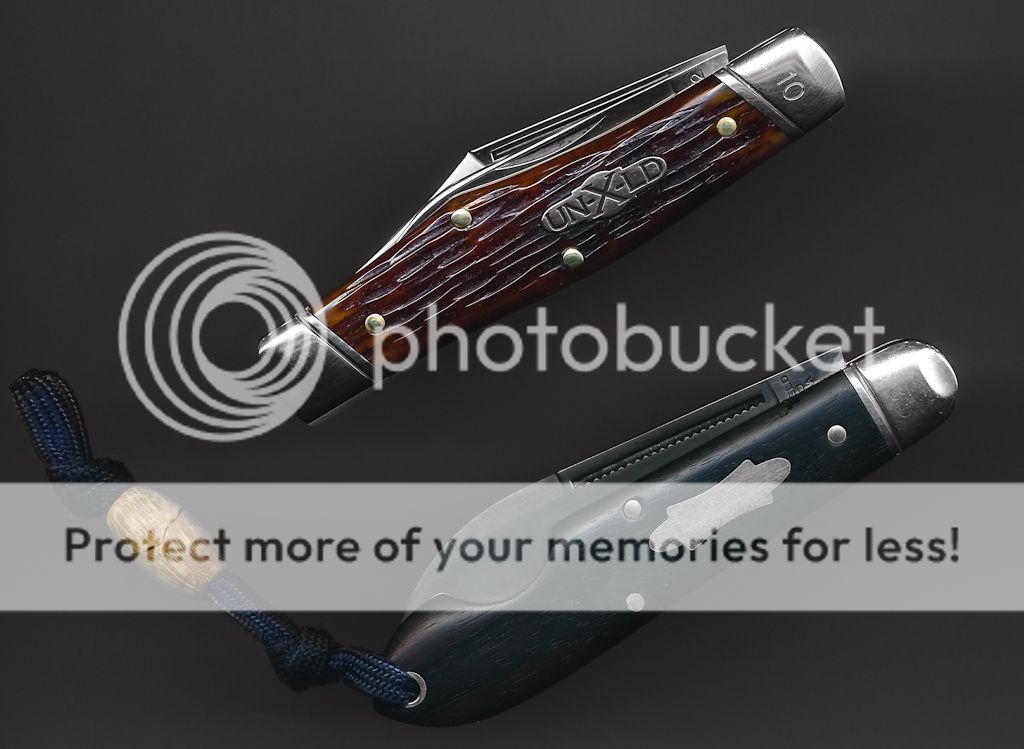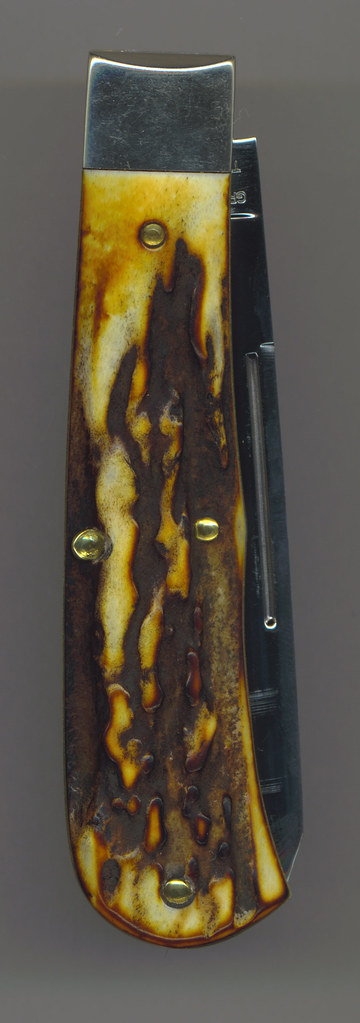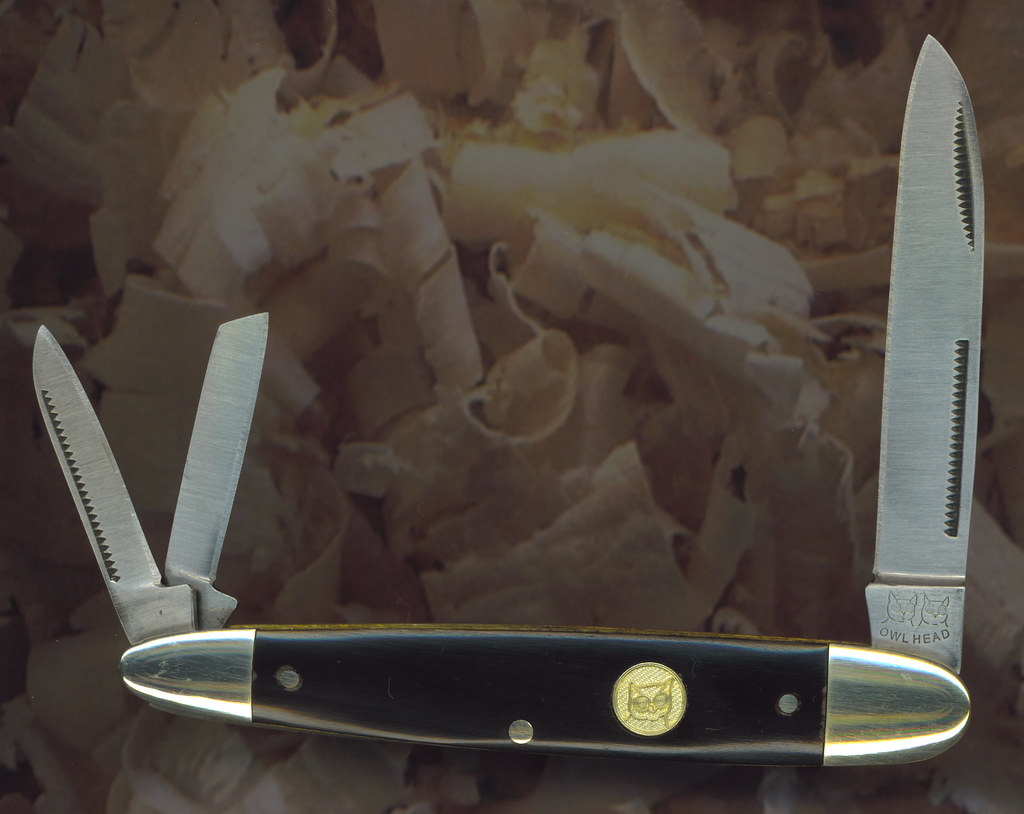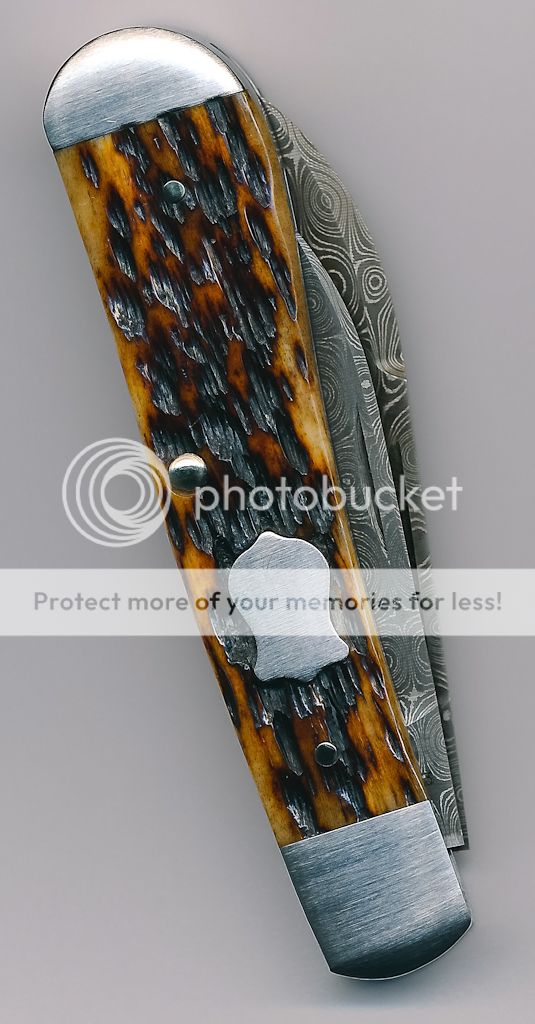

- Joined
- Dec 19, 2006
- Messages
- 8,210
There's a lot of helpful info in BRL's forum:
Epson Perfection scanners have the best depth of field for scanning 3D objects, nearly 1/2 inch. Some others have little or none -- I suppose it has to do with the optical design of the scanning bar.
I have a very old 1200 and a very new 4490. The 1200 came with MUCH better software, which I still use for it. The 4490 has better color range so I just use it for graphics. I use the 1200 for knives. Dennis E. recently bought a 4490 for knives, and has had excellent results. Try not to scratch the glass.
If the Epson software is too much of a pain, there is some good 3rd party scanning software around, e.g. Lasersoft Silverfast -- but I have not tried it.
* * *
Scanning knives:
Do NOT use the scanner's own cover when scanning knives or other 3D objects.
Instead use a large piece of paper, to cover the knife and the *entire* glass (so the exposure will be right).
Usually white paper works best. Or light gray. Or sometimes tan.
DO NOT EVER use colored papers, or textured materials. Same rule applies to photography, unless you are a professional advertising photographer and know how to light the background separately. Colors contaminate the color of the item; textures distract from the item, and waste bandwitdth in compressed scans. They also look bad.
Try varying the angle of the knife lying on the glass, since the light of the scanner is directional. Make sure shadows do not fall on important details, such as markings.
Experiment. Pixels are free. All it costs is time...
If you are ambitious, raise the paper above the knife and glass on a frame, to darken it and put it out of focus. Downside: this can require more dust spotting of each scan. I now routinely raise my white paper 1-2 inches, so it goes gray, and out of focus.
Include a ruler, NOT touching the knife.
*
Scan at monitor resolution, either 96 or 100 dpi, NOT HIGHER (unless the scan is for magazine publication -- then follow their specs). 96 dpi is the maximum that any monitor can display; some older scanners offer 100 dpi, but newer ones offer 96 dpi. Use it! UPDATE: Some new hi-res or HD monitors, e.g. Mac, support higher resolutions.
Unsharp masking ON (usually a checkbox). This improves figure/ground separation.
Descreening ON (usually a menu item). This minimizes 'jaggies.'
Scan full knives at 100% size or larger. I have standarized on 200% now, because 100% images are too small to see clearly on my iMac.
For very large knives, make multiple overlapping scans WITHOUT rotating the knife. Then stitch them with panoramic software -- or by eye.
Always crop out empty background in the pre-scan, before the final scan.
Scan TIGHTLY CROPPED closeups of details such as markings at 300% size or larger, big enough to read easily. I have now standardized on 500%.
*
Save each scan to disk in its original format (my Epson scanner makes .TIF files).
If posting pictures to a website, or sending them by email, DO NOT USE .TIF or other raw files.
Convert them to compressed JPG format, using any image viewing/editing program. I use preview on the iMac, but anyone who says the Mac is graphics friendly has either never used one, or never used anything else.
On the PC I use ThumbsPlus, free download from www.cerious.com
It is the main reason I still have a PC.
Most such programs let you do color and contrast corrections, rectangular cropping, downsampling to reduce file size, and other fixes. But you don't have to do any of these, unless you want to. Some even let you add captions and labels to the photos, and create composite images.
When saving JPG files, you will (hopefully) be offered compression options.
Choose 2:2 subsampling and 75% quality. These are the maximum settings that a monitor can display. Any higher quality setting wastes bandwidth. Any lower and you'll start seeing 'tile' artifacts due to pixel averaging.
Use the corrected and CROPPED JPG files for websites and email.
*
BRL...