Let's Design Some Knives...

Joined
Oct 1, 1999
Messages
6,490
What if I could show you how to use Adobe PhotoShop to design ANY knife you want?

Of course it would just be a Virtual Knife, but I can show you how to make it just as real as a Weyer or Point 7 photograph. My purpose for suggesting doing these tutorials is not to turn you into Graphic Artists, but to hopefully make you knife makers more prolific designers and more profitable, For you buyers, what if you could show a maker exactly the knife you want?

To do these tutorials you will need PhotoShop, (I use PS 6). I'm on an iMac, but a PC will do just as well.

But Phil, I can't DRAW!

No problem, PS can. We're going to take baby steps to get you started and build until you'll be able to amaze yourself. It's easier than you think.

What I need to know is, if I write these tutorials who is game to try?

To get a rough idea of what I'm talking about, go to this thread and scroll down to the Bowie pic.
http://www.bladeforums.com/forums/showthread.php?s=&threadid=211940

(Remeber you'll be able to design, any knife, fixed or folder, any blade or handle shape, and any finish).
 
Phil

Ill test them for U. Im running Photoshop 7 and cant get it to do what I want it to do. Im photoshop challanged. I can load ver 6 back on to test the tutorials.

just drop me a line if its a go.

Otha
 
were you the one that redrew my logo a couple of years ago? it looks like a great tool for desiging. i am puter challange also. i have a old mac 2.0 some where. i doubt it would run the program? i may have someone i can trade a knife to for a farely new computer. i think your turtorial is a great idea. thanks
 
Phil told me about this the other night. I think it's a great idea.
I'm going to stick it at the top for awhile.
 
Man this sounds like fun.To bad I only have paint shop pro 7....
I will have to see if I can get the photo shop program.
Bruce
 
Looks like we've got a good turn out.
Kit, thanks for putting it up at the top.
I've got Lesson #1 all written out, I just need to type it out and do the illustrations. I'll start working on it now.

I think this is going to be fun,
 
First baby step, let’s design a simple but elegant Wharncliff Blade.

Open PhotoShop.

On your keyboard Press Control + N, for a new canvas. In the Dialog Box that opens, let’s make it 6 inches wide (432 pixels) by 3 inches height (216 pixels). 72 dpi, RGB, White background.

If the Rulers aren’t showing, (top and left side) press View menu > Show Rulers.

Your PS Palettes should be showing on the right side of your screen, (Press Windows menu > Reset Palettes, if they’re not). The bottom group should be; Layers, Channels & Paths. Click on LAYERS Tab, then click on the icon next to the Trash can to open a new layer.

In your Toolbox (left side of screen) click on and hold on the icon that looks like a PEN Nib, look at the choices, (we’re coming back here later) select the Pen tool, it’s the top one with the little X next to it..

Look up top at the Options Bar, click on the second icon “Create New Work Path”. If you don’t see it click on the check mark at the far left.

Move your cursor on to the canvas, click at 2” down 1” over, click again at 2” down and 4” over, and then one more time at 1” down and 4” over, and then back on the original point.

11536044.jpg


This next step may not seem that cool at first, but after you understand it’s potential you’ll want to throw away your French Curve.

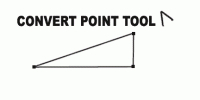
Back to the Toolbox and the Pen Tools, this time we want the bottom one, (the one that looks like an arrow with the bottom missing) It’s called the Convert Point Tool.

Click on the upper right point and Drag straight to the left and watch as you draw the spine of your Wharncliff. If the back edge starts curving instead of the top edge, bring the point back to the corner and grab the handle from the other side.

11536063.jpg


Don’t be afraid to play, try dragging that Direction Point around. Let’s see if you can make a Sheep foot.
How many of you Brave Souls dragged that point into the blade shape? If you did you may have something that looks like this...

11536076.jpg


Okay, go back and make that Wharncliff shape again, I want to show you how to Save it, because we’re going to start with it in the next lesson.

Go to your bottom palettes, Click on the Paths tab. You should see a thumbnail of your shape there, with “Work Path” next to it...Double Click on it. In the Dialog Box that opens name it “Wharncliff” or something and click OK. You now have a saved path.

Press, Control + S on your keyboard, in the Dialog Box name this file “Lesson #1”. Either PSD or TIFF File is fine, and save it to your desktop or wherever you know you can find it.

I know this lesson didn’t seem like much, but you just learned one of the most versatile and difficult PhotoShop tools. You may think I’m kidding, but there are Veteran PS Users that have tried and given up on the “Pen Tool”. I know I did the first dozen times I tried it. I figured I’d better wait until now to tell you. :D
 
I guess I do my designs the old fashion way, I use french curves and my imagination. To do what you are doing above you can also use your "paint" option on your standard program menu. I use my paint option to make my guard templates.
 
PhilL, this is awesome. Please try to make sure it's always easy to find while you're doing it as I won't be able to keep up on a daily basis (travel), but this is so good I don't want to miss any of it. This is the best training in PS I've ever seen.

Dave
 
I want to make sure everybody got the first lesson.
What we learned is to make Anchor Points with the PEN Tool.
Then we used the CONVERT Tool to Click and Drag on those ponts to make a curve...any curve.

This may help some.
 

Attachments

  • review.gif
    review.gif
    12.7 KB · Views: 918
Back
Top