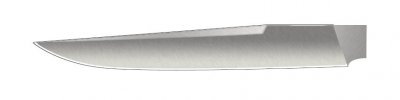
Lets do the Grind and the Swedge, same technique, but with some changes, pay attention.
Open the BOWIE File.
Make sure you have a NEW LAYER selected.
In PATHS Palette, Click on the GRIND Path, Bring on the Ants...LOAD PATH AS SELECTION Icon.
GRADIENT Tool, STEEL #1...Start with your Cursor just above the middle of the Top of the Grind and Drag Straight Down to just below the Bottom of the Grind.
Hey! Didnt you say before Never to Drag straight DOWN?
Hehehehehehe
LAYERS Palette, LOCK TRANSPARENT PIXELS.
FILTER Menu > NOISE > ADD NOISE
7%
FILTER Menu > BLUR > MOTION BLUR...Make sure your PREVIEW Box is Checked.
For the ANGLE you want to match the Angle of your PLUNGE.
Mine happened to be
-74º and I used a DISTANCE of
8 Pixels.
Control + D
Control + S
SWEDGE
New Layer.
Paths palette, select GRIND, make ANTS.
GRADIENT Tool...
STEEL #2...Start just behind the Point of the Blade and end just in front of where the Swedge starts.
Layers palette. Lock Transparent Pixels.
Filter menu > Noise > Add Noise. I used
4
Filter menu > Blur > Motion Blur... I used
13º
Ohhhh ohhhh ohhhh! I have a Question...How the Heck did you get that DEGREE Symbol?
Its a MAC thing...try to stay focused will ya?
CONTROL + D
CONTROL + S
NOTE You can Adjust the BRIGHTNESS & CONTRAST of any of these LAYERS. In your Layers Palette, click on the Layer you want. IMAGE Menu > ADJUST > BRIGHTNESS/CONTRAST.
Were just missing one thing, an EDGE on the blade.
In your TOOLBOX, select the PAINTBRUSH > 3 PIXELS > Hard Edge Brush...Start at the Point and paint....
Wait a minute ya Bastid...You said NO PAINTING!!!
Oh yeah, I forgot...Do this instead...
New Layer.
Paths palette > Grind path > Make ANTS
On Keyboard, Press D and then Press X. This will make your Foreground Color WHITE.
Edit menu > Stroke...Width: 3...Location: INSIDE...Mode: NORMAL...Opacity 100%...OK
Control + D
Contrul + S
From the NAVIGATOR Palette...Zoom in on the EDGE where it meets the CHOIL.
Toolbox > ERASER > Select the Hard Round 13 Pixel brush.
Click to erase the White Edge line where it goes up the grind line.
Move your Zoom Box up until you can see the top of the grind.
While Holding the SHIFT KEY....Click on the Corner.
Release the Shift Key...Move the Zoom Box until you can see the Point of the blade.
SHIFT + CLICK.
If there are any remains of the White along the grind line just erase them.
CONTROL + S